frametop
Full Keyboard for Steam Frame
A full-size alternative to Steam Frame’s built-in virtual keyboard, made for everyday use on the headset. It adds proper arrow keys, a numpad, Ctrl and Alt, and dedicated Copy and Paste buttons for browsing, signing in, editing text, and using local apps.
Full Keyboard is launched manually by default. By default, SteamOS’s keyboard button opens the original keyboard. An experimental Replace native keyboard option in Experimental redirects supported requests while Full Keyboard is running. It requires Steam Developer Mode and falls back to the original keyboard when unavailable. Enable Start with SteamOS in the same card to start replacement in the background at login. It stays hidden until summoned. See native replacement.
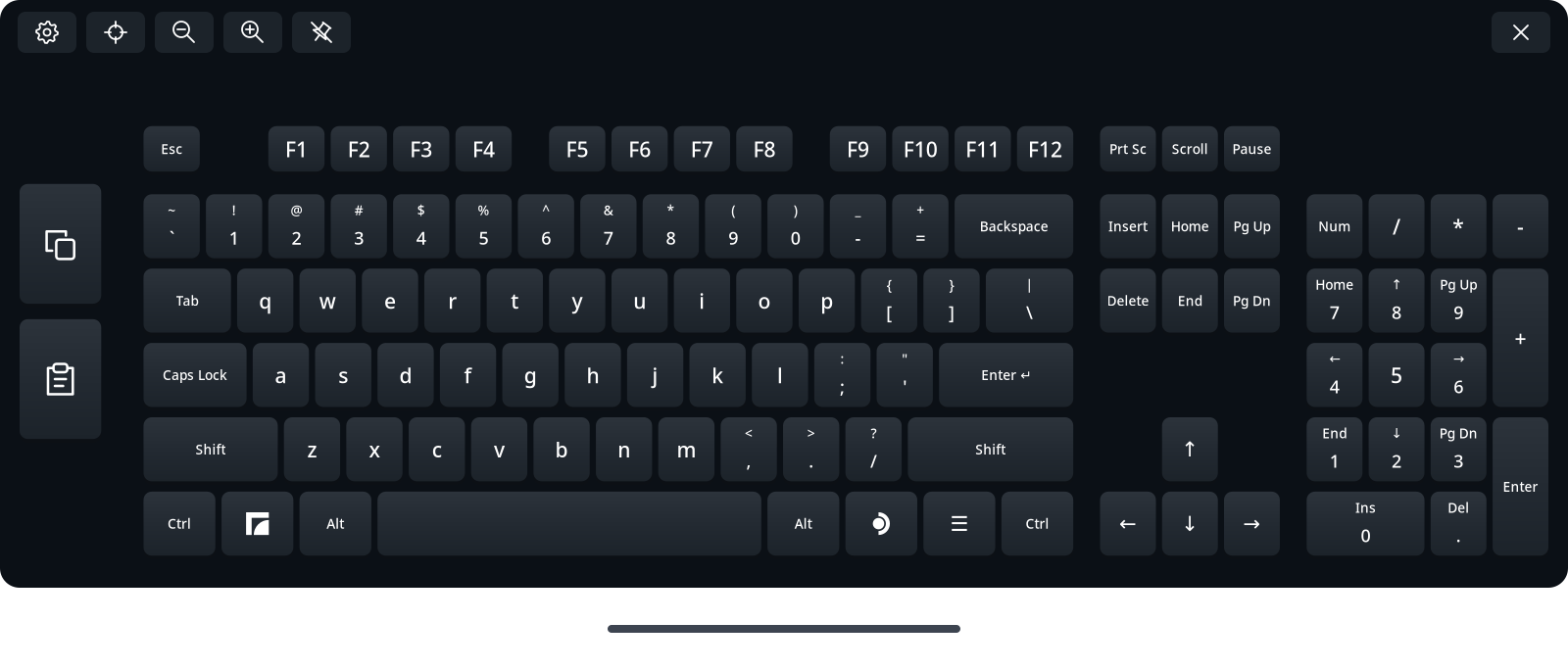
The default English layout and Graphite theme, captured from the app’s native renderer.
What it does
- Full-size layout with F1–F12, navigation keys, arrow keys, numpad, Ctrl, Alt, and Shift.
- Dedicated Copy and Paste icons that send Ctrl+C and Ctrl+V.
- Native Enter and numpad Enter keys. The focused app decides whether Enter submits or inserts a newline.
- Controller laser typing, press/release haptic clicks, and subtle hover feedback.
- Move with the laser handle below the keyboard, or enable grab movement in Settings. Size controls are available in both modes.
- Dashboard following, saved placement, and relaunch-to-recenter recovery.
- Editable layouts, languages, and themes, with a settings menu inside VR.
- English, German, French, Spanish, Italian, Brazilian Portuguese, Russian, Ukrainian, Japanese, Chinese and Korean options. Chinese has Simplified and Traditional Pinyin; Korean uses two-set Hangul.
Where it works
Full Keyboard is a quality-of-life tool for the on-device experience. It is designed for the Frame dashboard and local apps, including desktop and floating app windows. Focus a text field in the app, then type using the controller laser.
It is not a keyboard for streamed VR applications such as VRChat. Closing the dashboard hides the keyboard and releases its input. It does not capture controls or send keys to a streamed VR app. Reopening the dashboard brings it back.
This is an early release. App focus, non-US keymaps, and Japanese input can behave differently across applications; see known limitations and troubleshooting. Japanese composition has automated and dedicated-receiver coverage, but still needs feedback from fluent Japanese users.
Install manually
No AI tools, compilation, sudo, or SteamOS write access are needed for the release package.
- On the Steam Frame, open the GitHub Releases page in a browser. Download
framekeyboard-0.8.1-aarch64.tar.gzandSHA256SUMSfrom the release assets into Downloads. Do not download GitHub’s automatic source-code archive for this installation. -
Open a terminal in the Frame’s desktop environment and run:
cd ~/Downloads
sha256sum -c SHA256SUMS
tar -xzf framekeyboard-0.8.1-aarch64.tar.gz
cd framekeyboard-0.8.1-aarch64
bash install.sh
Continue only if the checksum reports
OK. For a newer version, use its archive and extracted directory names. -
Return to the Frame’s dashboard and open Full Keyboard from the app launcher. You can also launch it from a terminal:
~/.local/bin/framekeyboard
The installer adds a desktop application entry named Full Keyboard. If you also want a Steam Library shortcut, use Steam’s Add a Non-Steam Game option and select Full Keyboard. A manually created shortcut has its own name; rename an old FrameKeyboard shortcut in its Properties if needed.
Everything installs under your home directory. The installer preserves settings and custom profiles, replaces the current production release, and does not enable autostart or alter Steam files. Development deployments and older unmarked release directories are preserved. Internal filenames and commands remain framekeyboard.
To update from the installed keyboard, open Settings and press Check for updates at the top center. If a newer stable release is available, press Download and install update. The keyboard verifies the archive, installs it and restarts, preserving your settings. The old production release stays until the new one confirms a healthy start, then is removed. A failed start rolls back automatically. See updates.
For a manual update, quit Full Keyboard first. With native replacement enabled, use Settings → Quit Full Keyboard. Download the new release assets and repeat the installation steps. The installer supports reinstalling the same version or installing an older one, and refuses while Full Keyboard is running. Manual rollback means reinstalling an older release package; see rollback and removal.
Use the keyboard
| Action | Control |
|---|---|
| Type | Point at a key and press the controller trigger |
| Use a shortcut | Tap Ctrl, Alt, or Shift, then another key; or hold the modifier with one controller and press a key with the other |
| Super shortcuts | Tap the left Frame icon, then a key, or hold it with the other controller |
| Desktop application menu | Tap the right SteamOS icon for a native right Super press/release; the desktop controls its action |
| Clear a tapped modifier | Tap it again |
| Copy / paste | Use the two icons on the left; select text first when copying |
| Move / rotate | Unpin, point at the line below the keyboard, hold the trigger, move your hand, then release |
| Use the headset cursor | Press AUX to show the head cursor. Aim at keys with your head and click AUX; hold AUX on the movement line to move the keyboard |
| Use grab movement | Enable Use Drag to Move in the General settings card and apply. Point anywhere on the keyboard and hold grab/grip; the same hand’s thumbstick adjusts depth |
| Prevent accidental movement | Toggle the pin icon; the keyboard still follows the dashboard |
| Cycle favorite layouts and languages | Press the language abbreviation beside the pin icon |
| Move farther / closer | While holding the movement line or grabbing, push that same controller’s thumbstick up / down |
| Change size | Use the smaller / larger icons in the toolbar |
| Hide the numpad | In Settings, check General → Hide numpad and Apply and save |
| Change layout, language, or theme | Open the gear icon, choose profiles, then Apply and save |
| Recenter | Use the recenter icon, or launch Full Keyboard again |
| Close | Use × to hide the panel in replacement mode; otherwise it exits the app |
| Quit replacement mode | Open Settings → Quit Full Keyboard |
If the keyboard has drifted out of reach, launch the app again. When it is already running, another launch recenters the existing keyboard beneath the current dashboard instead of opening a second one. Its size is preserved. If the dashboard is closed, recentering waits until it opens.
Closing and reopening normally restores the last position, rotation, size and Num Lock state. Numpad visibility is saved globally across all layouts. Moving or tilting the dashboard carries the keyboard with it, preserving your chosen offset. With General → Auto leveling enabled, a sideways lean within 5° eases level over 500 ms after releasing movement. Auto leveling is on by default; disable it to keep the angle you set. This preserves the desk-like forward tilt and never fights your hand during a grab.
Languages and customization
Select a language in Settings and Apply and save. The normal Frame launcher sends characters from that layout independently of the system keyboard layout, including Shift, Caps Lock, AltGr and dead-key accents. No matching SteamOS layout or relaunch is needed. A fresh install defaults to English; later launches use your saved selection. System locale and system layout switching do not change it. See language setup and switching.
For Japanese, pick Romaji, Kana, or JIS from the Language dropdown in Settings. Romaji and Kana compose text in the keyboard and use the system Anthy dictionary for kanji conversion. Space converts; Enter commits the composition. Another Enter sends a normal Enter key. JIS mode requires an existing system IME. See Japanese input.
Chinese and Korean compose locally and can be selected alongside English and integrated Japanese without a system layout change. The language guide explains candidates, Hangul, and input limitations.
Copy a bundled JSON profile from ~/.local/share/framekeyboard/current/share/framekeyboard/ into the matching folder below, edit it, then use the Reload config icon in Settings:
~/.config/framekeyboard/layouts/
~/.config/framekeyboard/languages/
~/.config/framekeyboard/themes/
Use a new profile id to add a choice, or the same id to override a bundled one. Configuration reference covers fields, favorites, validation, and saved placement.
How it works
The keyboard is a native C++20 app. Cairo/Pango draw the keys, Vulkan/OpenVR display the panel, and libei sends native controls to the Frame’s local Gamescope compositor. A feature-checked Gamescope text-input protocol sends characters resolved from the selected layout, including Japanese, Chinese and Korean composition. It does not run a browser or need an internet connection.
Copy and Paste send shortcuts; the app does not read clipboard contents. It does not log typed text or save composition history. Placement and profile preferences are stored locally.
The visible panel polls input and follows the dashboard at a target 60 Hz. While hidden, polling drops to 4 Hz. It redraws the texture only when its display changes or a key animation runs. With replacement enabled, closing the panel keeps the app resident for the next native request; Settings → Quit Full Keyboard exits it. With replacement off, closing the keyboard exits the process. Battery impact has not been benchmarked.
Development and feedback
- Build from source
- Architecture and code map
- Runtime and troubleshooting
- Manual acceptance checks
- Roadmap and changelog
- Contributing and bug reports
- Release checklist
- Third-party code and licenses
Please report the app version, SteamOS version, affected app, whether it is a desktop or floating window, and steps to reproduce. Remove private text from screenshots and logs.
License
Project code is available under the MIT License. Vendored components keep their upstream licenses.
AI-generated project disclaimer
This project is fully AI-generated. The author is unfamiliar with C++, so please have patience and understanding. Bugs and rough edges are expected; careful reviews, clear bug reports, and contributions are welcome. Third-party components retain their original authorship and licenses.